One Artboard, Zero Code
I gave Claude a real Figma design and asked it to build a live page. Here's what it got right unprompted, and what needed my eye.
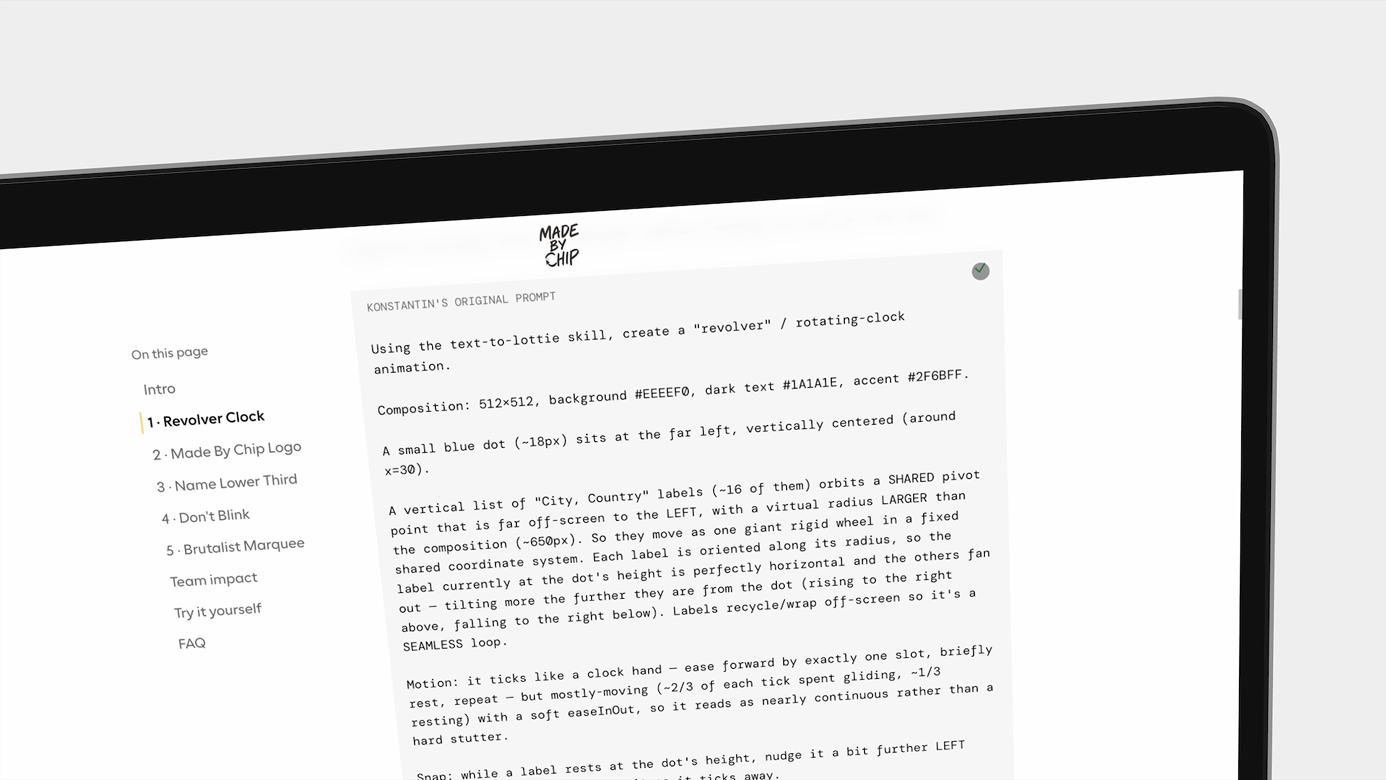 The result
How much of a design can Claude build on its own?
Done this kind of thing before? Trying it yourself.
Try it yourself
Turn one artboard into a page, your way
Here's the goal. Hand it to Claude Code or any AI coding agent and work it out. The steps below open on a hint if you get stuck.
- The goal
- A live, responsive HTML page built from your own artboard, with a list of everything the AI had to guess.
- Time
- About an afternoon, with iteration
Here's a Figma artboard exported into Paper. Convert the design to a standalone HTML page, mobile responsive, in the font from the design. Then list every interaction state, dark mode and mobile layout detail you inferred that isn't in the design, so I can check them by eye.
Check your result
- Assets, logos and icons all render
- Font weights match your design
- Spacing and centering hold on desktop and mobile
Step 1
Test the baseline before the design
Before opening Figma, I gave Claude a text description of a tutorial page and no design reference. The author info was crammed on one row, the social icons and logo were broken, and on mobile the chapter sidebar covered the content completely.
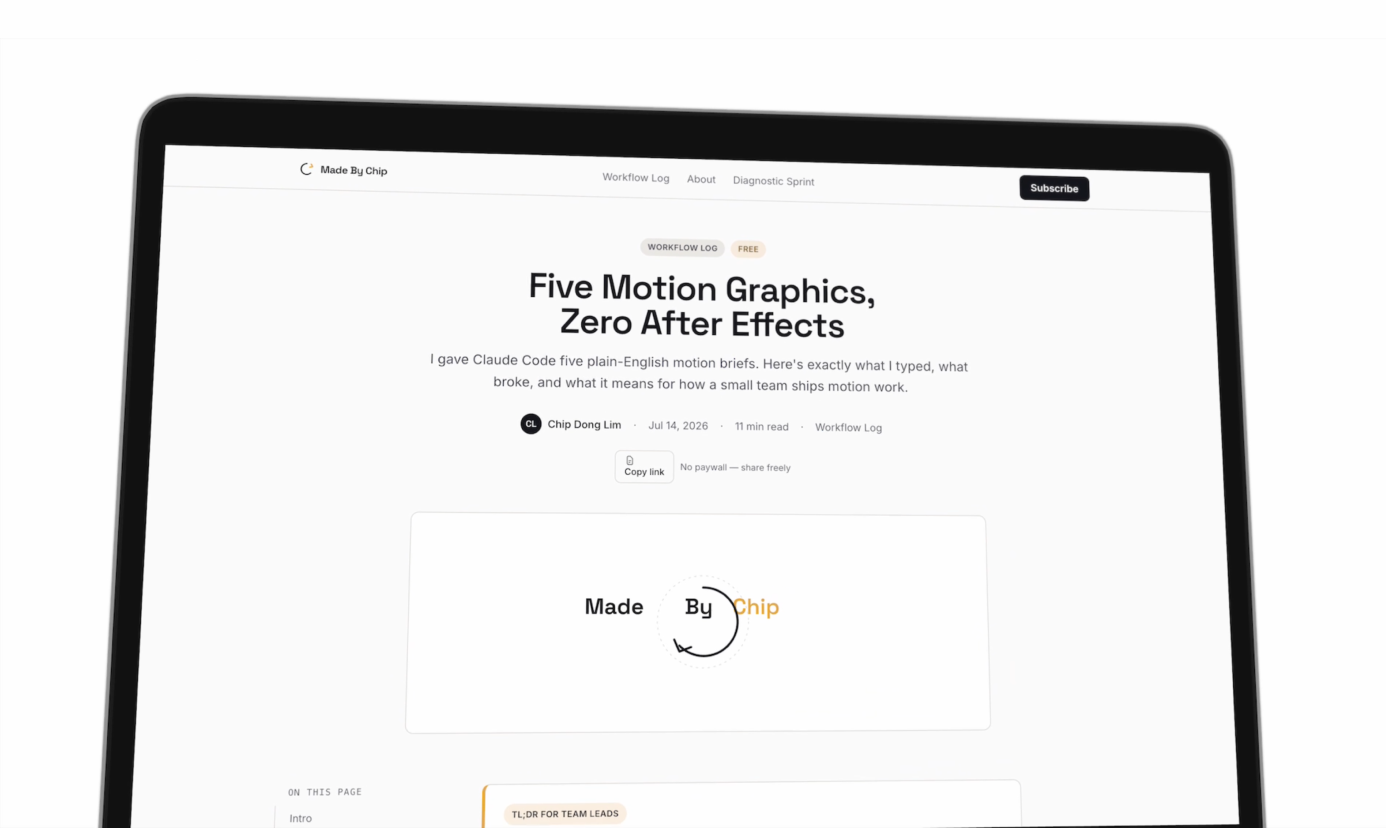
This is what you get when the design work hasn't happened yet. So the design work has to happen first.
Step 2
Hand Claude the real design
I designed the page in Figma, then exported the artboard into Paper, which runs a local MCP server while your file is open. Claude Code reads the real structure through it, not a screenshot: spacing, typography, tokens and layout.
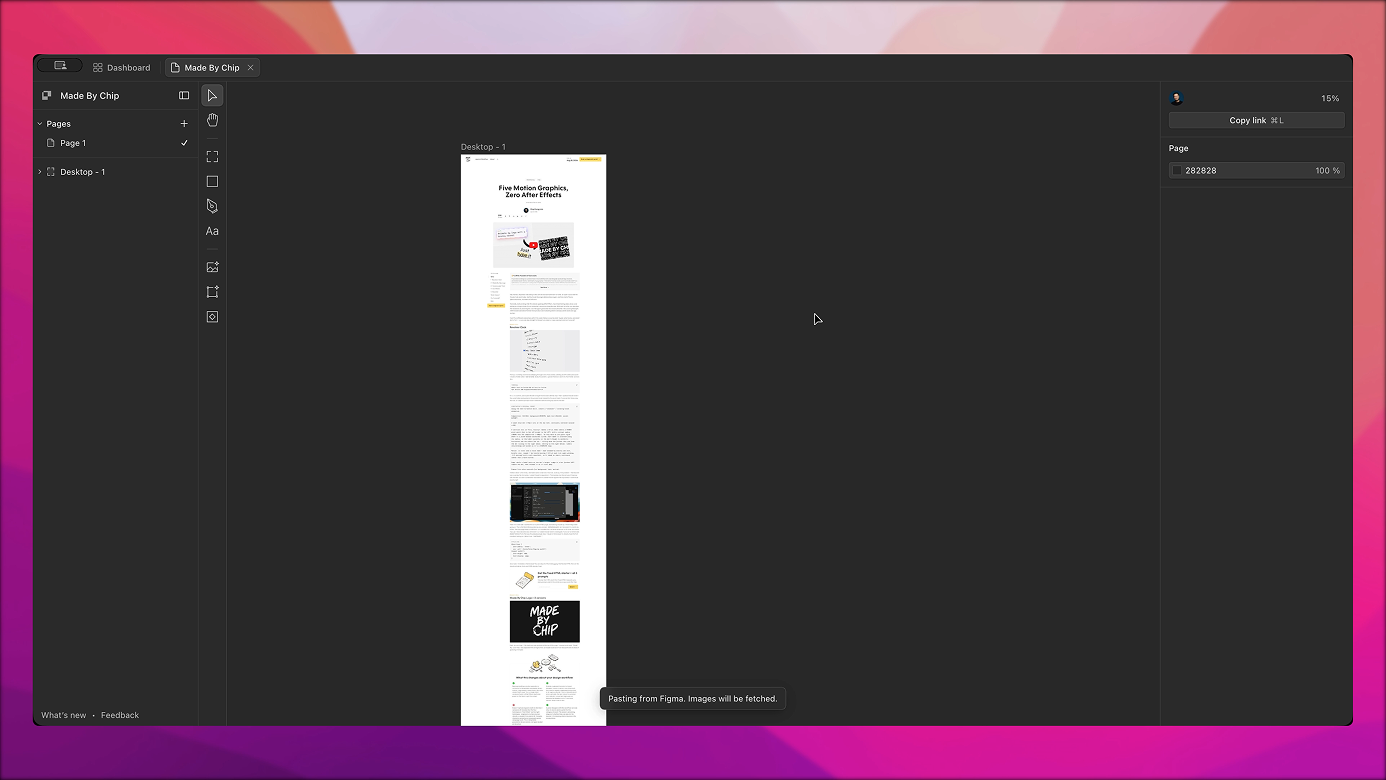
/paper-desktop:design-to-code
https://app.paper.design/file/01KXKCSYEAV7ZDQVHBB1Z4V3J5/1-0/CT-0
Convert the design to a HTML page.
Ensure it's mobile responsive. Use Cal Sans font as per the design.
Use ShadCN.
Claude asked upfront: React app or standalone HTML? I chose standalone, since this was a new page.
Step 3
See what Claude got right unprompted
Several things appeared that were never in the design: nav hover states, a copy button success state, the FAQ accordion, a mobile layout and a complete dark mode. I only designed light mode on desktop.
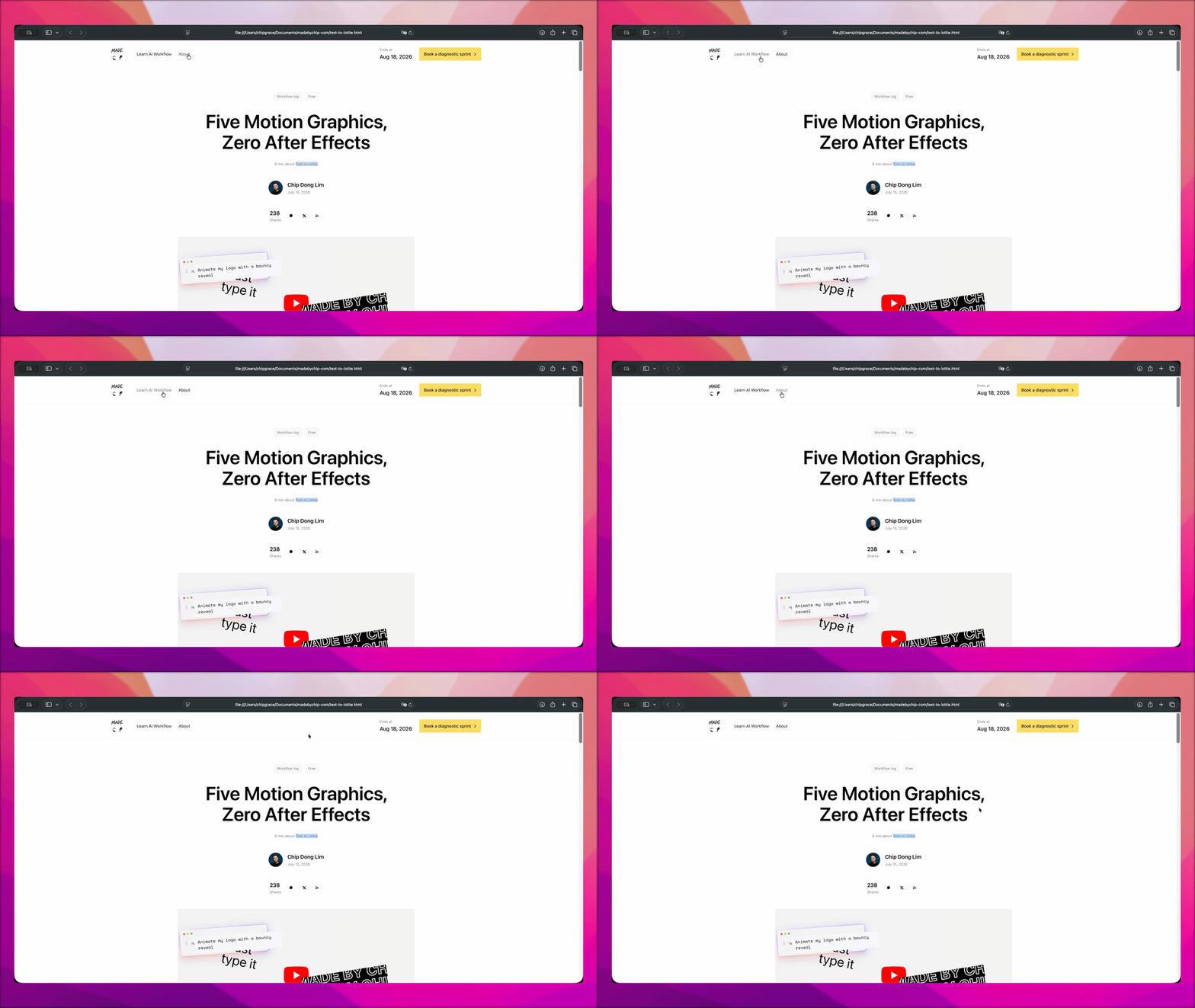
The check came out black at first, so I asked for a fix:
After user clicks on the Copy prompt icon clipboard-document, the "check" icon should be check from Heroicons, and color should be #24B822.
The color isn't the point. Claude inferred that a copy click should confirm the copy, and built both states itself.
Step 4
Fix the assets and font weights
The logo corrupted on export to Paper and the social icons didn't render. I exported them locally as SVGs and named the exact Heroicons icon for every state in one prompt:
Please use Heroicons for the icons:

* sun and moon to toggle between dark and light mode.
* chevron-right for icon beside "Book a diagnostic sprint", "Send it", and the question in Frequently asked questions section when it's collapsed.
* chevron-down for icon beside "See more" and the question in Frequently asked questions section when it's expanded.
* clipboard-document for copy icon under terminal.
* check-circle solid and x-circle solid for "What this changes about your design workflow" section.

Please replace the current corrupted logo and social media SVG with the following icons in "Images" folder.
Font weights didn't survive the Figma-to-Paper import either. Paragraphs that should be semibold rendered regular, and bullet points dropped. Each needed its own prompt.
Step 5
Add the motion and the spacing system
Every expand and collapse on the page used one easing curve for both directions, which read as mechanical. One prompt applied two curves everywhere at once:
Implement asymmetrical easing, meaning different animation curve for opening versus closing.

1. ease-out or a custom curve like cubic-bezier(0, 0, 0.2, 1) for Expanding (Opening), so it draws the user's eye smoothly into the newly revealed content without a jarring, abrupt stop.
2. ease-in or an acceleration curve like cubic-bezier(0.4, 0, 1, 1) for Collapsing (Closing), so the acceleration at the end of the animation makes the dismissal feel decisive.
For spacing, rather than fixing one oversized card in isolation, I asked for a page-wide pass:
please align all the spacing in the page to a standard 8-point grid system.
Step 6
Iterate on layout with screenshots
I wanted the author portrait touching the top edge of the card below it. Claude centered it first. It took three rounds: a screenshot reference, then testing padding values live in the inspector until 2rem looked right, then a precise prompt:
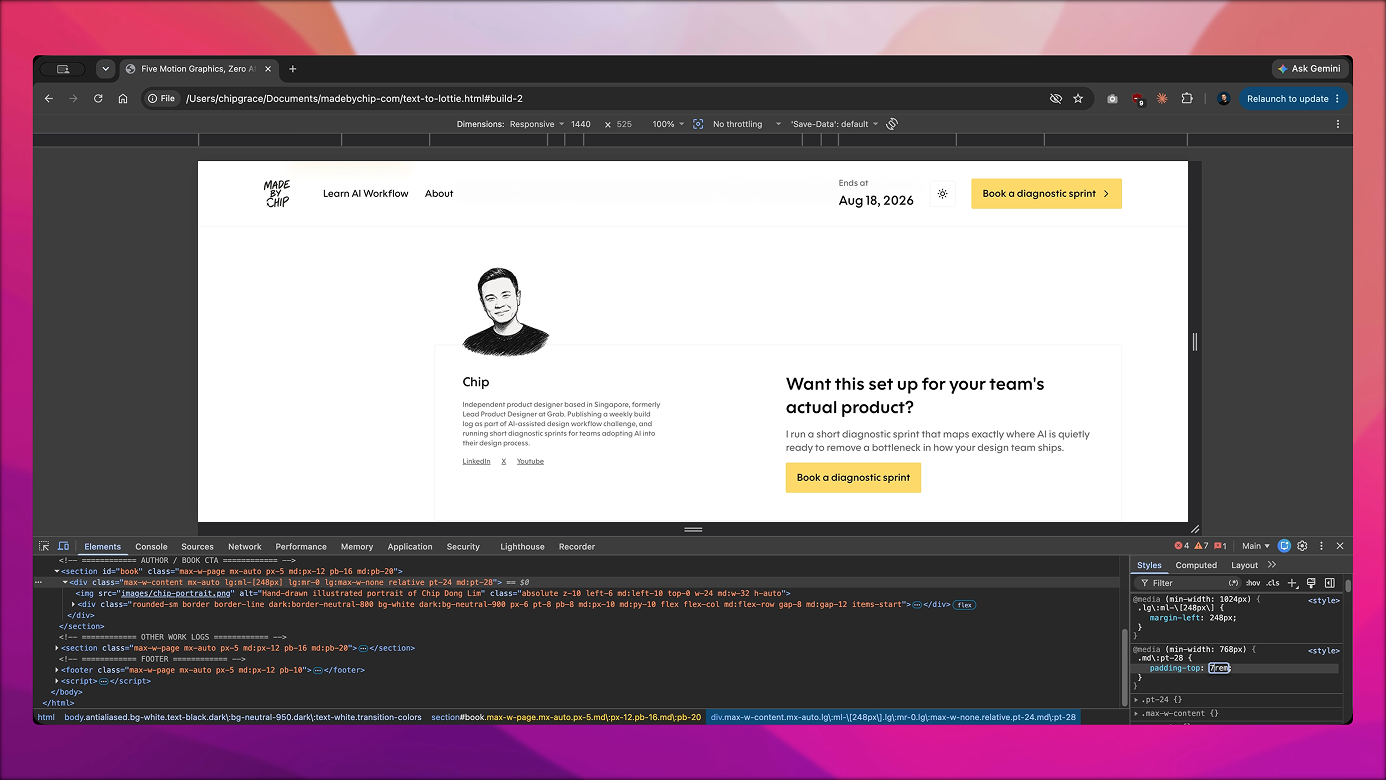
No, I actually want "chip-portrait.png" to be at padding-top: 2rem, as the head touches the border of the box. Please update the position of the image and content underneath it accordingly.
Centering needed a screenshot with two red lines drawn on it, and a hunch about the cause:
Screenshot 1: The sidebar and article content is still not exactly at the center for the page. Notice when I drew two red border on the left and right, right side has more margins compared to the left. Ideally they should be equal.

Screenshot 2: I might know why. Would it makes sense if the very left edge of both "Want this set up for your team's actual product?" and "Other popular work logs" sections are aligned to the chapter sidebar?
The hunch was right: two sections weren't locked to the sidebar's grid column. Once aligned, five elements landed at exactly 366.5px from center.
Gut check
Which of these still needed a designer's eye?
Claude generated dark mode and the mobile layout without being asked. Assets, font weights and layout precision needed iteration. "The designer's role didn't disappear. It shifted."
Honest verdict
When to use it, and when not to
- Use it for
- A fully responsive page with light and dark mode and working interaction states, from one artboard, in an afternoon.
- Skip it for
- One-shot generation. Layout details took two to three rounds each. Close enough to ship a rough is not close enough to ship a final.
- Careful with
- Assets and font weights can corrupt moving from Figma to Paper. Export SVGs locally and name them clearly before prompting.
Take it to work
Your Monday checklist
On your laptop 0 of 5 done
One zip: the full HTML file converted from the design, and the original Figma file. Free, delivered by email.
“Email this to myself” opens your own email app with a link back to this cheat sheet. Nothing is sent from this site.
Workflow done.
No streaks and no guilt. Come back whenever you have ten minutes.