Five Shaders, Zero Code
Paper's GPU shaders replace After Effects for animated logos, buttons and backgrounds. Five real interfaces, parameter by parameter.
 The result
Flat interfaces, and no time for After Effects.
Done this kind of thing before? Trying it yourself.
Try it yourself
Bring one logo to life, your way
Here's the goal. Open Paper and work it out. The steps below open on a hint if you get stuck.
- The goal
- One of your own logos or photos, animated with a shader, tuned by sliders only.
- Time
- About 10 minutes
1. Open Paper and press S (or click Shaders in the left panel).
2. Pick an effect, like Liquid Metal.
3. Paste your logo SVG, or drop in a photo.
4. Tune the sliders until it feels right.
5. Export the shader as React or plain JavaScript.
Check your result
- The shader wraps your own mark or photo
- Any text on top is still readable
- You exported it as code without writing any
Step 1
Animate a logo with Liquid Metal
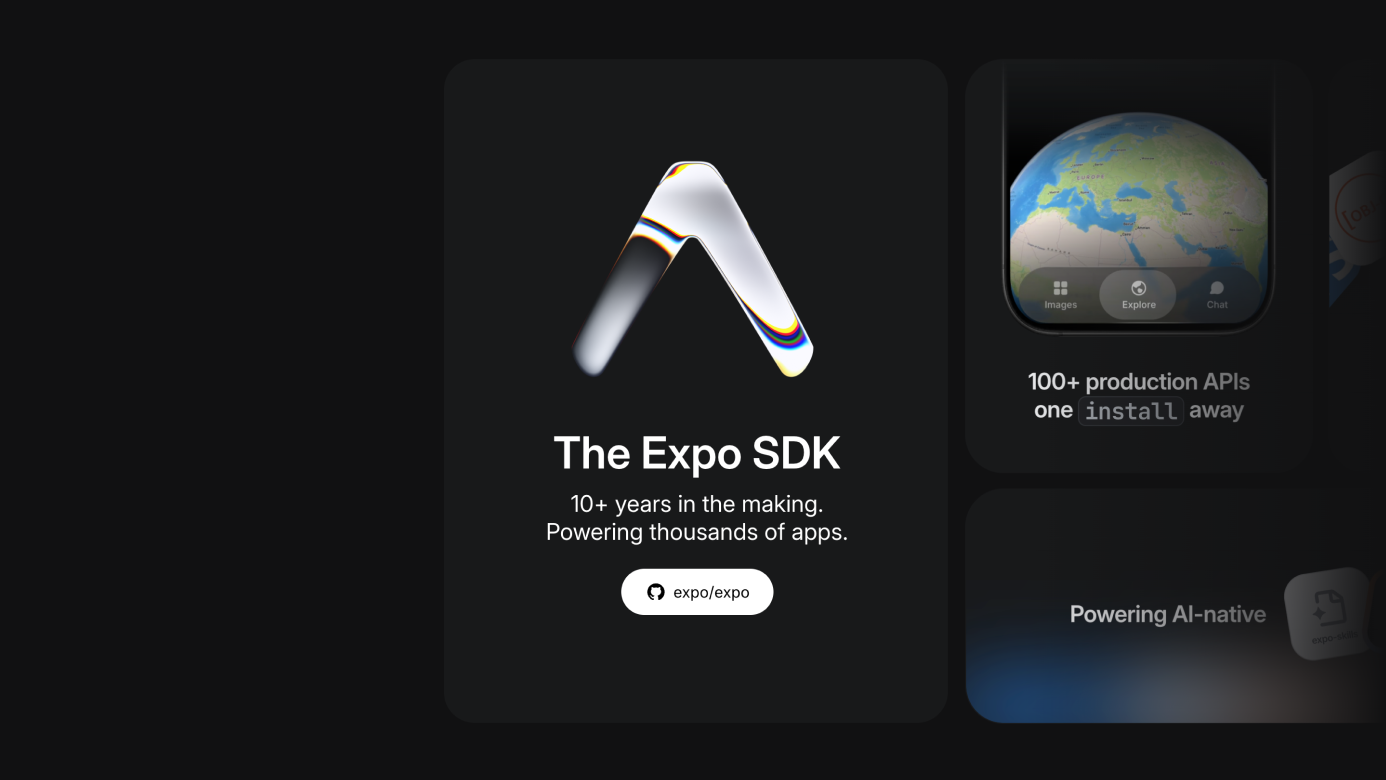
Open the left panel, click Shaders (or press S) and pick Liquid Metal. Paste your logo SVG and work through the parameters: Repetition, Contour, Distortion, Softness, Angle, Red and Blue Shift, Speed and Scale.
The two-tone look took two layers: one Liquid Metal for the fill, a second, resized and recentered on top, for the rest of the mark.
Step 2
Stack three shaders into a footer
A hypothetical Razer footer, rebuilt from three shader layers. The logo: Gem Smoke in white, light green and dark green. The wordmark: the same shader and colors, with outer distortion at 100%, inner distortion at 67% and inner glow at 61. The haze: Smoke Ring, black fill with a green foreground, enlarged along the bottom edge.
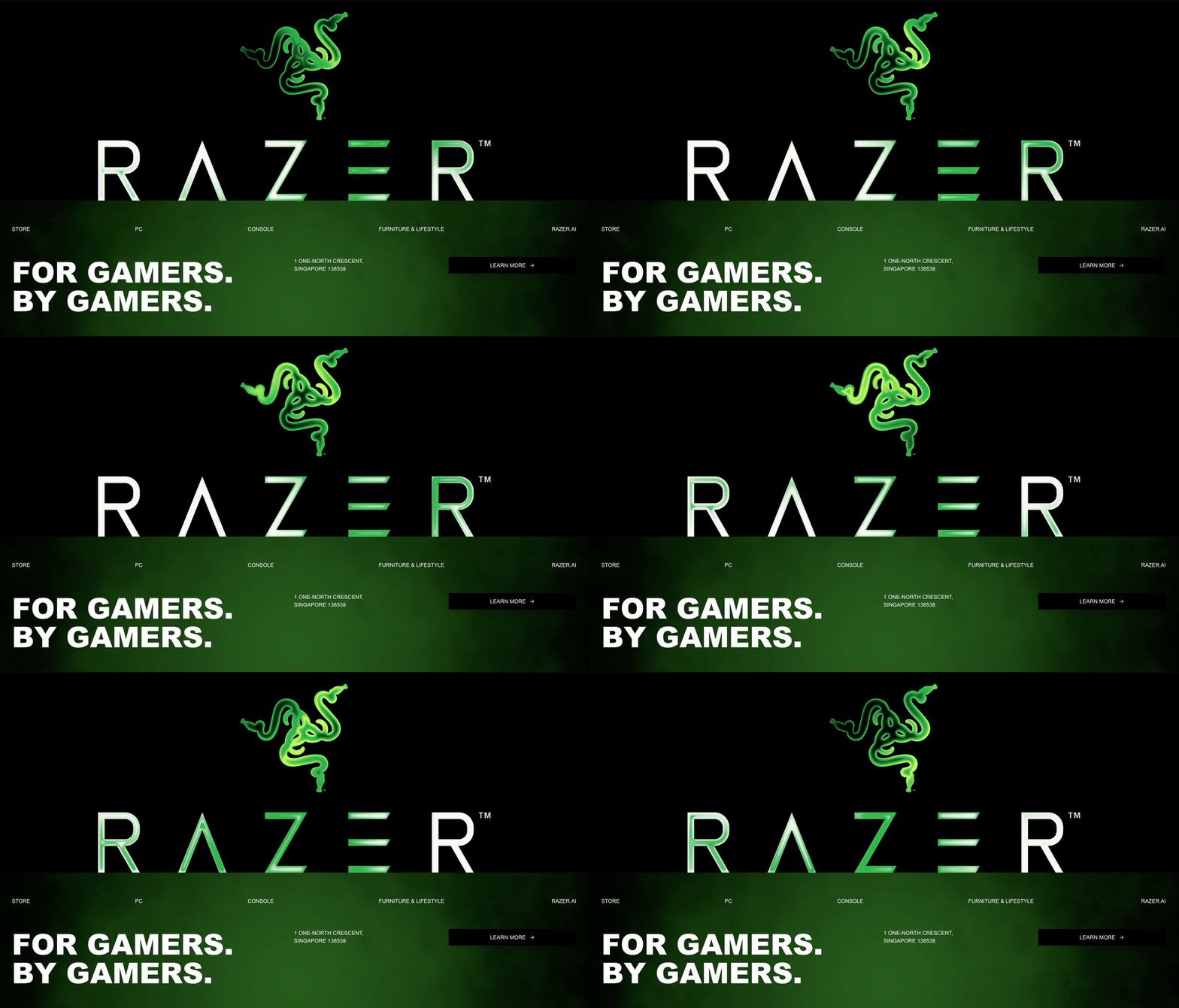
Reorder the layers so the text above the haze stays legible.
Step 3
Turn a photo into a mysterious hero
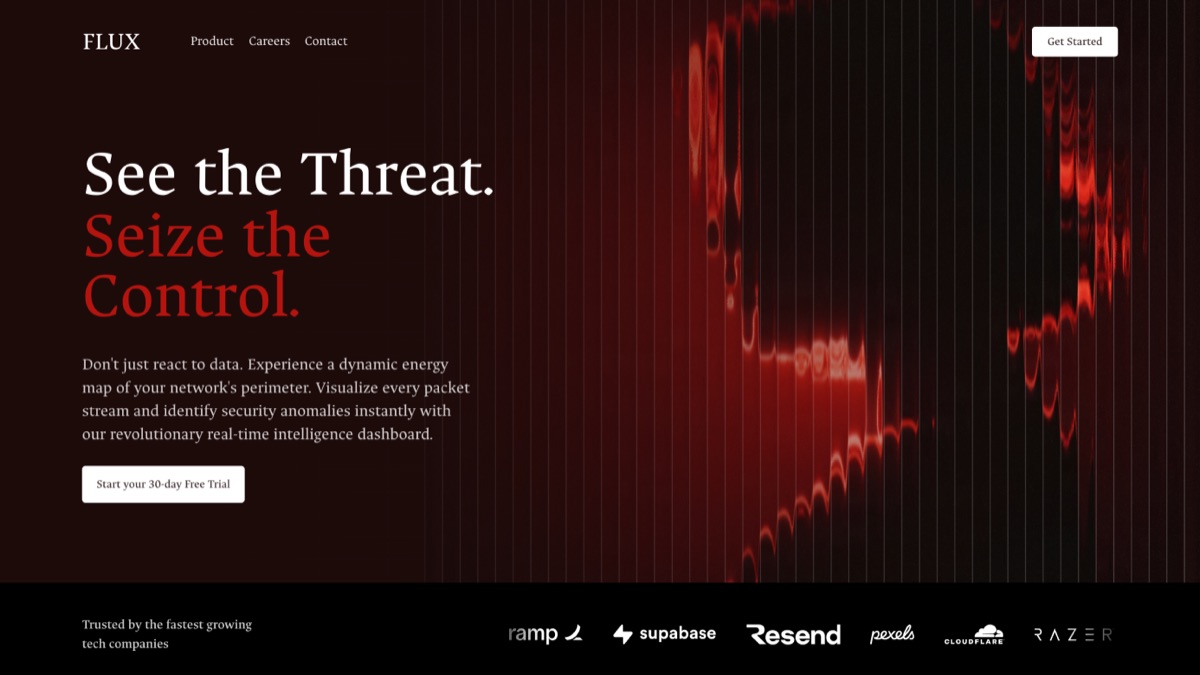
Start with a cinematic silhouette photo and apply Fluted Glass. The setting that mattered most was Size: wider gaps between the lines made the image feel dynamic instead of dense. Then Highlight and Shadow, a slight Angle, light Distortion, a small Shift and some Blur.
Step 4
Build a pulsing AI agent button
A circular AI-agent trigger with a soft glow and a pulsing border, built from four layers: Liquid Metal on a circle for the base glow, a 70% gray rounded rectangle with backdrop blur, a sparkle icon with a shader constrained to its own shape, and a white border duplicated for a circling-light effect.

The Liquid Metal settings from the logo came back almost unchanged here. Tuned values transfer fast.
Step 5
Halftone a sign-up background
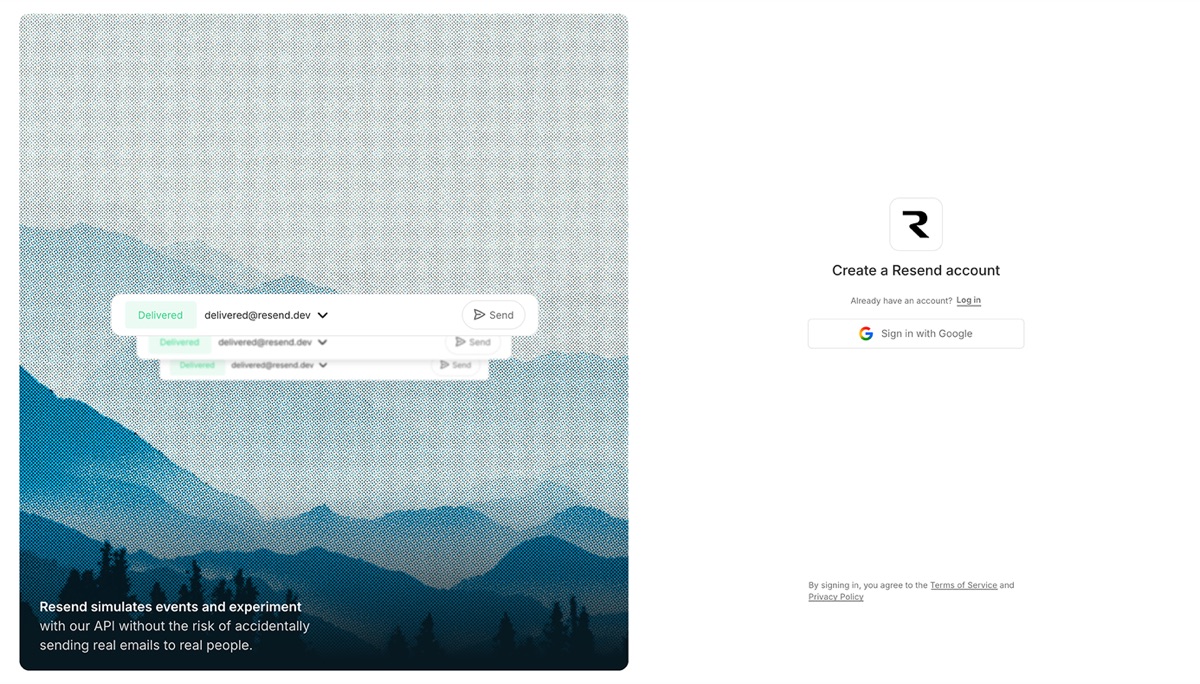
A plain sign-up background, replaced with a mist-covered mountain photo run through Halftone CMYK. Dots, Ink and Sharpness did the most work, plus Grid Noise for texture. He pulled back the red and green gain so the color wouldn't overwhelm the UI.
When you're happy, export the shader as React or plain JavaScript. Treat the export as the shader logic, not the finished integration.
Gut check
What does a shader still not decide for you?
Every showcase still needed manual layer ordering, framing, clipping and colors from an existing brand palette. The shader generates texture. It doesn't decide composition.
Honest verdict
When to use it, and when not to
- Use it for
- Noise, liquid metal, smoke, halftone and fluted glass as sliders instead of hand-written WebGL, exported to code you can drop in.
- Skip it for
- Deciding composition and color for you. None of these needed a shader to function. It's the difference between a UI that works and one that feels considered.
- Careful with
- The export is real React or vanilla JS, but it still needs wiring into your component structure, sizing and state.
Take it to work
Your Monday checklist
On your laptop 0 of 5 done
Links to all 5 Paper showcases with the parameters already dialed in, plus every original SVG and background image. Free, delivered by email.
“Email this to myself” opens your own email app with a link back to this cheat sheet. Nothing is sent from this site.
Workflow done.
No streaks and no guilt. Come back whenever you have ten minutes.